Skip to content
Accessibility
Primer's color system and accessibility guidelines.
When designing with colors consider the following to make your UI visually accessible.
Assure adequate color contrast
Color contrast between text and its background must meet required WCAG standards.
The contrast requirements are:
- 4.5:1 for normal text
- 3:1 for large text (>24px)
- 3:1 for UI elements and graphics
- No contrast requirement for decorative and disabled elements
Use an online contrast checker or a Figma plugin to test your contrast.
If you work with the functional colors, this work has already been done for you. We checked all recommended combinations, so you are all set.
Don't rely on color alone
Show state with more than color
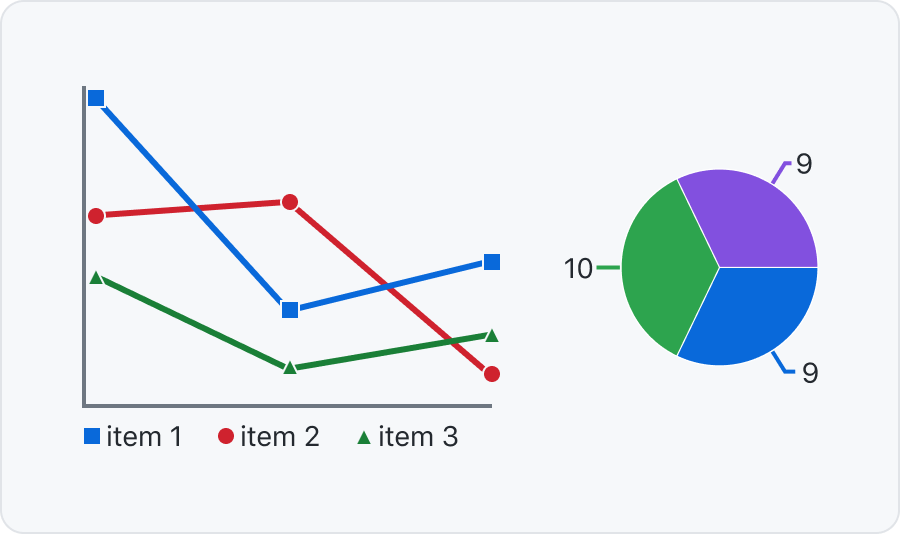
Color vision deficiency is different for different people. To make sure everyone can understand and use your UI you should show state with more than a change in color. For example by using icons or changing the content.Connect labels to graphs with lines or patterns
For charts and graphs you can position the labels on top or close to each section. You can also use patterns to distinguish different parts.